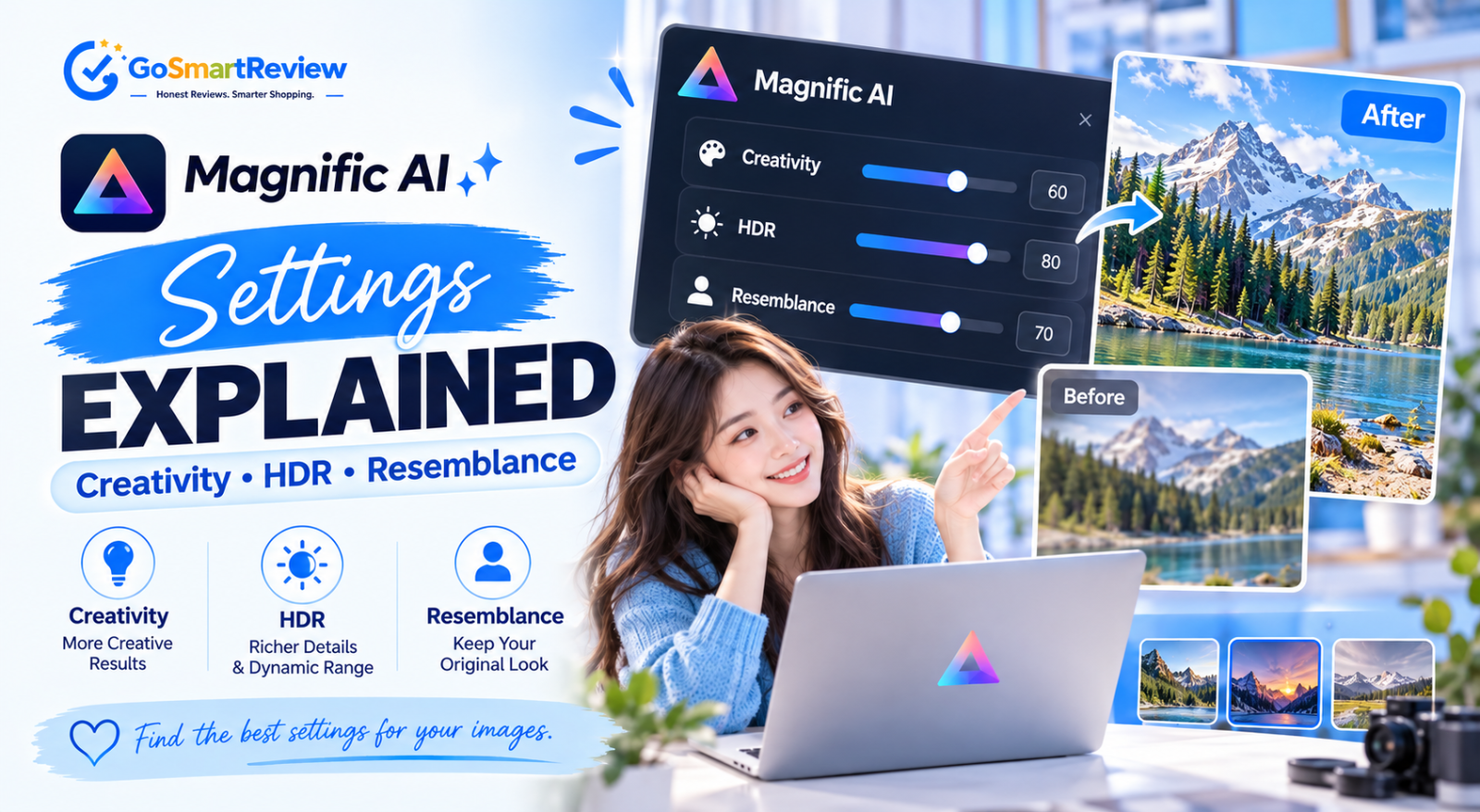
Magnific Settings Explained: What Creativity, HDR and Resemblance Really Do
Magnific's control panel looks intimidating the first time you open it. In practice, two sliders do most of the work. This deep dive explains every setting in Creative and Precision mode, how they interact, and safe values to start from.
Two modes, two sets of controls
Every Magnific setting depends on which mode you're in. Creative mode (the original Magnific upscaler) invents new detail and has the most sliders. Precision mode (formerly Clarity) focuses on faithful enlargement, has fewer controls and goes up to 16x.
If you haven't decided whether Magnific is worth paying for, read our full Magnific review first. If you're already subscribed, this is the reference to keep open while you work.
Every Creative setting, one by one
These are the controls you'll see when Creative mode is selected, in the order most people should think about them.
Scale
Multiplies width and height: a 1024px image at 4x becomes 4096px. The higher you go, the more every other setting matters, because every invented detail is magnified too. Test at 2x, then re-run at your target size.
Model: Magnific vs Classic
The Magnific model unlocks all the sliders and is what most people should use. Classic is quicker and leans on presets, which suits batch jobs where you don't want to fine-tune every image.
Presets
Subtle makes minimal changes and suits portraits. Vivid adds richer texture and depth and is the best all-rounder for AI art. Wild gives the AI maximum freedom: fun for stylised art, risky for faces. Custom lets you set every slider yourself.
Creativity (−10 to +10)
Magnific's signature control. Negative values behave almost like a traditional upscaler; positive values hallucinate believable detail like pores, hair strands, fabric weave and cracks in stone. Above +5 it can overcook faces, adding extra rings, odd teeth or misplaced highlights.
Resemblance (−10 to +10)
The counterweight to Creativity. Positive values tell the AI to respect the original shapes, colours and composition; negative values let it drift. If faces or key shapes start changing, raise Resemblance before you lower Creativity.
HDR (−10 to +10)
Boosts contrast between light and dark areas and makes the image feel crisper. A little rescues flat, hazy images; too much makes realistic photos look over-sharpened. Adjust it last, in steps of 1.
Optimized for
Tells Magnific what it's looking at, with categories such as Standard, Portrait, Art & illustration, Nature & landscapes, Film & photography, 3D renders, Videogame assets and Sci-Fi & Horror. Always set it: a portrait on a generic category is the fastest route to waxy skin.
Prompt
An optional sentence describing the image, so the AI can interpret unclear areas. Describe what's there plus the textures you want, e.g. "old fisherman, weathered skin, wool sweater, harbour at dawn". Keep it short.
Every Precision setting
Precision mode has fewer controls and no prompt. What you upload is exactly what it works from.
| Setting | Options | What it does |
|---|---|---|
| v2 Sublime | Model | Highest quality, balanced across image types, and the only model that reaches 16x |
| v2 Photo | Model | Tuned specifically for photographs |
| v2 Photo Denoiser | Model | Removes noise; ideal for low-light shots, old scans and compressed files |
| v1 High HDR | Model | Stronger dynamic range and contrast for dull images |
| Presets | Balanced, Portraits, Grainy Analog | Portraits protects skin texture; Grainy Analog keeps film grain |
| Sharpness | 0–100 | Edge sharpening strength; keep below about 50 for faces |
| Grain | 0–100 | Adds or removes film grain; a little often looks more natural |
What about Fractality and Engine?
If you use an older version of the interface or the API, you may also see two extra controls.
Fractality sets how much detail is added per pixel area: higher values give finer, more complex texture. Engine picks the underlying model: Illusio for illustration and digital art, Sharpy for photography and hard surfaces, Sparkle as a balanced option, and Automatic when you're unsure.
A 4-step way to dial in any image
- Run the preset closest to your goal at 2x
- Looks flat? Raise Creativity (or Sharpness) by 2
- Looks fake? Raise Resemblance by 2
- Touch HDR last, in steps of 1
- When it looks right, re-run at your final scale
- Moving Creativity, HDR and Resemblance in the same run
- Leaving Optimized for on a generic category
- Using Wild on portraits of real people
- Setting Grain to 0 on old film photos
- Judging results without zooming to 100%
Who needs this level of control
✔ Fine-tune the sliders if you
- Finish AI art and want a consistent house look
- Upscale for print, where small artefacts show
- Work on game textures or 3D renders at 8x–16x
- Hit the same problem (waxy skin, harsh edges) often
✘ Stick to presets if you
- Mostly upscale for social media at 2x
- Process large batches where speed matters more
- Are happy with the Subtle, Vivid or Balanced results
- Are still learning which mode fits which image
How the Creative sliders interact
| Combination | Result | Best for |
|---|---|---|
| Creativity low + Resemblance high | Clean, faithful enlargement | Portraits, products |
| Creativity high + Resemblance high | Rich new texture on the original structure | Most AI art |
| Creativity high + Resemblance low | Heavily reimagined image | Stylised or experimental art |
| Creativity 0 to +3, HDR 0 to +2 | Safe all-round starting point | Your first run on any image |
| HDR above +3 | Punchy contrast, sharper edges | Flat or hazy images only |
Starting values are our own testing suggestions, not official Magnific defaults.
Quick answers
Which slider matters most?
Creativity, closely followed by Resemblance. Together they decide how much the AI invents and how faithful the result stays.
Why can't I find Fractality?
It appears in older versions of the interface and in the API. The current Creative panel focuses on Creativity, HDR and Resemblance.
Does Precision mode have Creativity?
No. Precision uses models plus Sharpness and Grain, and doesn't accept prompts.
Which Precision model should I choose?
v2 Sublime for most jobs and anything at 16x, v2 Photo for clean photos, v2 Photo Denoiser for noisy or compressed images.
What does Optimized for actually change?
It tells the AI what kind of content it's enhancing, so it applies the right enhancement strategy for skin, foliage, film grain and so on.
Learn two sliders, then the rest
You don't need to master every control on day one. Learn how Creativity and Resemblance pull against each other, always set Optimized for, and keep HDR for last. That covers the vast majority of upscaling jobs.
Once those feel natural, experiment with Precision models and Grain for photography work. For pricing and plan details, see our full Magnific review.
Try Magnific AI →