How to Use Magnific AI Upscaler: A Step-by-Step Guide for Beginners
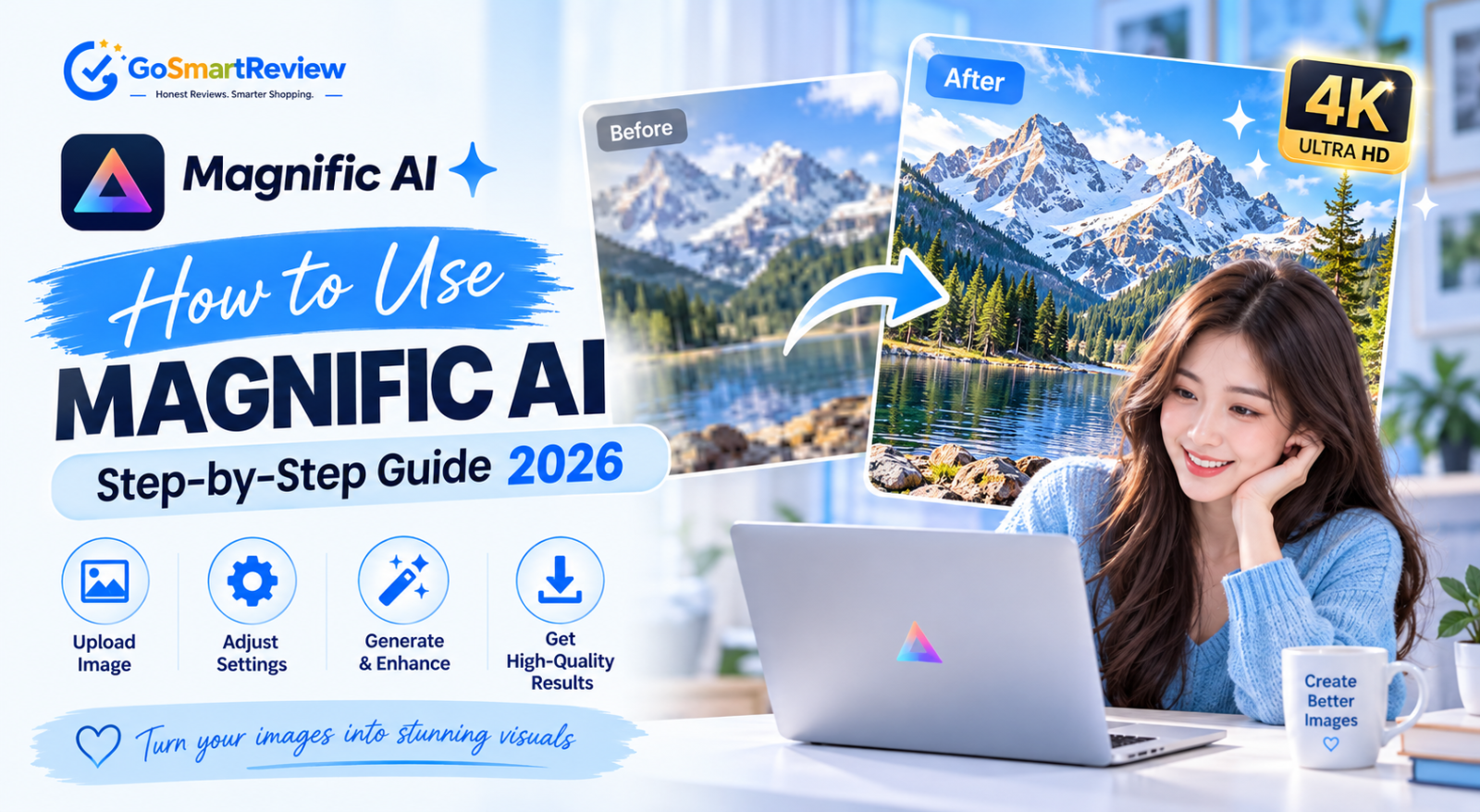
Magnific can turn a soft, low-res image into a sharp 4x or even 16x file in about five clicks. The catch is choosing the right mode and keeping the sliders moderate. This guide walks you through sign-up, your first upload and every decision along the way.
What you need before you start
Magnific is the detail-hallucinating AI upscaler that Freepik acquired in 2024 and, in April 2026, turned into the name of its whole creative suite at magnific.com. In our in-depth Magnific review we scored it 7.8/10 and called it the strongest creative upscaler on the market.
This guide picks up where that review left off. You don't need any design experience: if you can upload a photo to social media, you can get a great result from Magnific in your first session.
Upscaling your first image
The whole workflow happens on one screen. Follow these eight steps in order the first time; after a few runs it becomes second nature.
Sign up and choose a plan
Go to magnific.com and create an account. Pick the lowest tier first: Magnific has a no-refund policy, so run 10–20 of your own images before upgrading. Check whether your tier rolls unused credits over, because some don't.
Open the Image Upscaler
From the dashboard, open the Image Upscaler. You can also reach it from inside the Image Editor by choosing Upscale from the tool menu, which is handy if you've just generated an image on the platform.
Upload your image
Drag and drop a file, paste an image URL, or pick one from your recent creations. Always upload the largest, cleanest version you have: a screenshot of a screenshot gives the AI far less to work with.
Choose Creative or Precision mode
Creative mode invents believable new detail (skin pores, fabric weave, brushstrokes) and is ideal for AI art, illustration and 3D renders. Precision mode stays faithful to the original and is right for real photos, product shots and print. This is the most important choice you'll make.
Set the scale
2x is enough for web and social, 4x suits portfolios and most AI art, and 8x–16x is for posters and canvas prints. In Precision mode, 16x requires the v2 Sublime model. Higher scales cost more and magnify flaws, so test at 2x first.
Pick a preset and "Optimized for"
Start from Subtle (Creative) or Balanced (Precision) rather than a blank custom setup. In Creative mode, set Optimized for to match your subject, such as Portrait, Art, Nature or Film.
Add a short prompt (Creative only)
Describe what is in the image in one sentence, e.g. "portrait of a woman, natural skin texture, soft window light". Don't describe a new style. Precision mode doesn't accept prompts.
Generate, compare and download
Click Generate, then use the before/after slider and zoom to 100% on eyes, hands, text and edges. If something looks off, change one setting and run again. When the 2x version looks right, re-run the same settings at your final scale and download.
If your first result isn't right
Most first-run problems have a one-setting fix. Change only one thing per run so you know what worked.
| What you see | Likely cause | Try this |
|---|---|---|
| Flat, soft result | Settings too conservative | Raise Creativity by 2 (Creative) or Sharpness by 10 (Precision) |
| Waxy or fake-looking skin | Wrong category or too much Creativity | Set Optimized for to Portrait and lower Creativity |
| Face or shapes changed | AI has too much freedom | Raise Resemblance, or switch to Precision mode |
| Harsh contrast, crunchy edges | HDR or Sharpness too high | Lower HDR by 1–2 or Sharpness below 50 |
| Hand or composition still broken | Upscalers don't fix structure | Fix with inpainting first, then upscale |
What helps, what hurts
- Test every new image at 2x before going bigger
- Match the mode to the image: Precision for photos, Creative for art
- Always set Optimized for to your subject
- Write prompts that describe what's actually in the image
- Compare at 100% zoom before downloading
- Jumping straight to 16x on an untested image
- Using Creative mode on photos of real people
- Changing several sliders at once
- Pushing Creativity above +5 on faces
- Expecting Magnific to repair broken hands or messy crowd scenes
Who this guide is for
✔ This guide is for you if you
- Have just subscribed to Magnific and want a reliable first workflow
- Finish AI art from Midjourney, FLUX or similar tools
- Need to enlarge photos for print, web or large displays
- Want good results without learning every slider on day one
✘ You may need something else if you
- Only upscale an image once in a while and don't want a subscription
- Need a free tool to experiment with first
- Want a one-time-purchase desktop app instead of credits
- Need to fix structural errors rather than enhance detail
Which mode and settings for your image
Use this as your starting point, then fine-tune one slider at a time.
| Your image | Mode | Preset | Scale |
|---|---|---|---|
| Midjourney / FLUX art | Creative | Vivid | 4x |
| Real portrait or event photo | Precision | Portraits | 2x–4x |
| Product shot for e-commerce | Precision | Balanced | 2x–4x |
| Illustration or concept art | Creative | Vivid | 4x |
| Old, noisy or compressed photo | Precision (Photo Denoiser) | Grainy Analog | 2x |
| Poster or canvas print | Precision (v2 Sublime) | Balanced | 8x–16x |
Presets and scales above are our recommended starting points, not official Magnific defaults.
Quick answers
Is there a free version of Magnific?
No. As of 2026 there is no permanent free plan and no refunds, so start on the cheapest tier and test with your own images.
How long does an upscale take?
Usually one to three minutes. Some users report slower queues at peak times, even on higher tiers.
How big can I upscale?
Up to 16x. In Precision mode, 16x requires the v2 Sublime model.
Can I use a prompt in Precision mode?
No. Prompts only work in Creative mode; Precision works purely from the image you upload.
Why does my upscale look over-processed?
Usually Creativity or HDR is too high, or Optimized for doesn't match the subject. Drop Creativity to 0, raise Resemblance and run again.
Keep it simple for your first week
For your first week with Magnific, follow one routine: Precision for photos, Creative for AI art, start from a preset at 2x, and only push the sliders once the image already looks right. That alone puts you ahead of most new users.
Once that routine feels natural, dive into the deeper controls. Still deciding whether to subscribe? Our full Magnific review covers pricing tiers and alternatives.
Try Magnific AI →