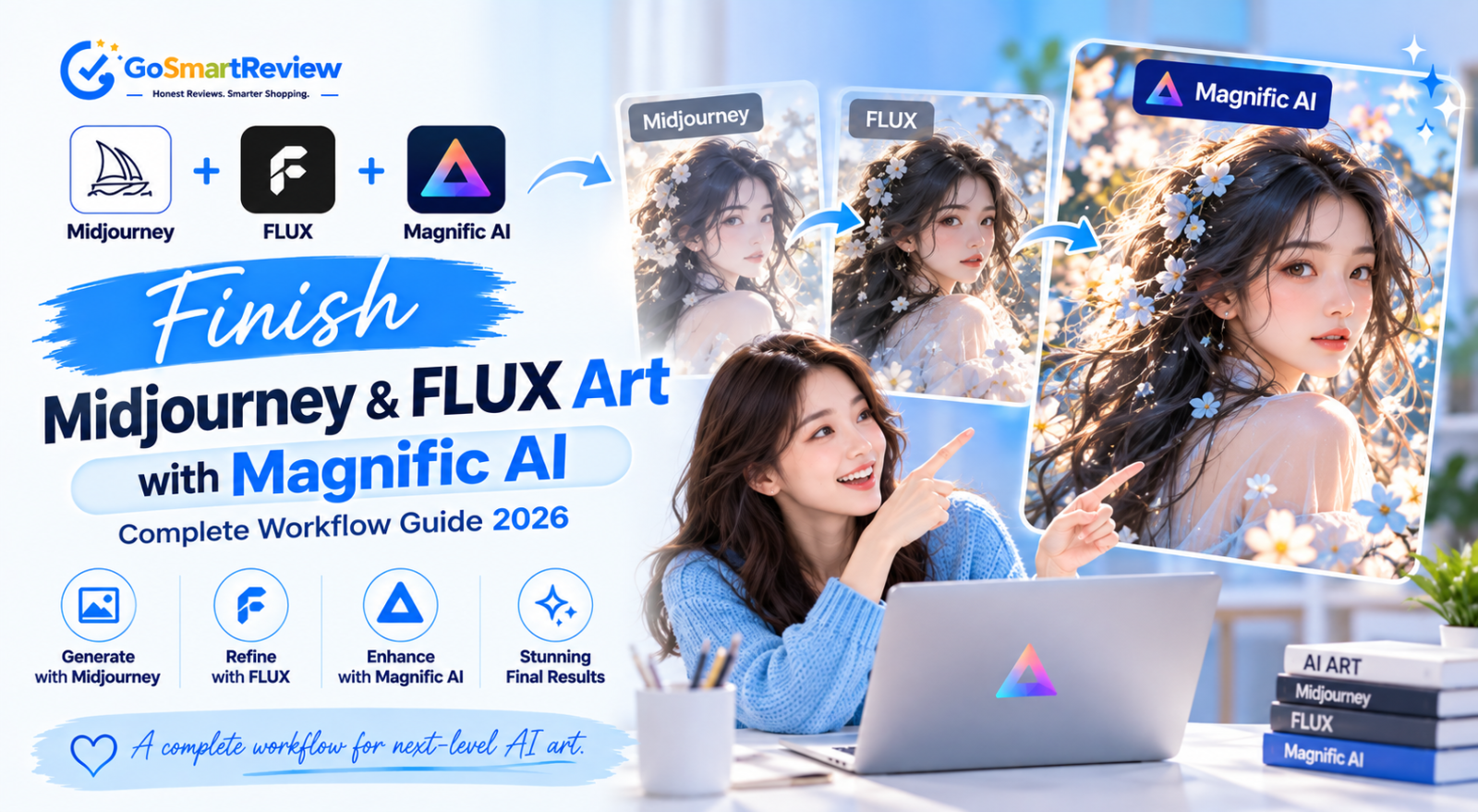
How to Finish Midjourney and FLUX Art with Magnific: An AI Artist's Workflow
Magnific built its reputation as the finishing step for AI art. The cheapest way to get print-quality results is to generate small, pick your winners, and only then spend credits upscaling them. Here's the full workflow, with settings for each art style.
Why AI art needs a finishing step
Images from Midjourney, FLUX and similar tools often look great at thumbnail size but fall apart up close: textures smear, edges soften and fine detail turns to mush. Magnific's Creative mode fixes exactly that by inventing believable detail such as fabric weave, stonework and skin texture as it enlarges.
In our Magnific review, AI art finishing was the use case where it beat every other upscaler we tested. This workflow shows you how to get that result without burning through your monthly credits.
The 5-step AI art finishing workflow
Follow these steps for every piece. The key idea: spend credits only on images you already know are keepers.
Generate at low resolution
Iterate in Midjourney, FLUX or Magnific's own image generator at around 1K. Don't upscale anything yet. Low-res generation is fast and cheap, so explore freely.
Shortlist 2–3 winners and fix composition
Pick your best images, then fix structural problems like hands, extra limbs or broken text with inpainting. Magnific enhances what's there; it won't repair a broken composition, and upscaling makes those flaws more visible.
Test at 2x in Creative mode
Upload a winner, choose Creative mode, the Vivid preset and the right Optimized for category (Art for most pieces, Portrait for character close-ups). Add a one-line prompt describing the scene.
Adjust one slider at a time
Want more texture? Raise Creativity by 2. Faces or key shapes drifting? Raise Resemblance by 2. Image feels flat? Add 1 to HDR. Re-run at 2x after each change.
Finish at your final scale
Re-use the winning settings at 4x for portfolio and web, or 8x–16x for print. Compare at 100% zoom, checking eyes, hands and small objects for anything the AI invented, then download.
How to write upscale prompts
An upscale prompt is not a generation prompt. Its job is to describe what's already in the image so Magnific sharpens the right things.
- Describe the content, not a new style: "knight in silver armour, stone castle wall, overcast light".
- Name the textures you want sharpened: "visible fabric weave", "fine brushstrokes", "weathered stone", "wet asphalt reflections".
- Keep it to one sentence. Long Midjourney-style prompts with style tags and parameters tend to confuse the upscaler.
- Re-use prompts across a series so a set of images keeps a consistent look.
What helps, what hurts
- Generate cheap and upscale only your winners
- Fix hands, limbs and text before upscaling
- Use Vivid as your default AI art preset
- Match Optimized for to the piece (Art, Portrait, Nature…)
- Save your best settings per style and re-use them
- Creativity above +5 on character faces
- Upscaling crowd scenes full of tiny faces in Creative mode
- Pasting your full Midjourney prompt into the upscaler
- Using Wild on anything that must look realistic
- Going straight to 16x without a 2x test
Who this workflow suits
✔ Use this workflow if you
- Sell AI art prints or digital downloads
- Deliver AI-generated visuals to clients
- Post AI art where viewers zoom in, such as portfolios
- Produce a regular volume of pieces each month
✘ Consider something else if you
- Only post AI art at small sizes on social media
- Need corrective fixes for crowd scenes or complex layouts
- Generate occasionally and don't want a subscription
- Want strict, literal enlargement with no invented detail
Starting settings by art style
Start here, then nudge one slider at a time.
| Style | Preset | Creativity | Resemblance | Optimized for |
|---|---|---|---|---|
| Photoreal character | Subtle | 0 to +2 | +4 | Portrait |
| Fantasy / concept art | Vivid | +3 to +5 | +2 | Art |
| Landscape | Vivid | +3 | +2 | Nature |
| Sci-fi or horror scene | Vivid or Wild | +4 to +6 | 0 | Sci-Fi / Horror |
| 3D render / game asset | Custom | +2 | +4 or higher | 3D / Videogame |
| Anime / flat illustration | Subtle | 0 to +2 | +3 | Art |
Values are our own testing starting points, not official Magnific defaults.
Quick answers
Should I upscale inside Midjourney first?
You can, but it's usually better to upscale the original output in Magnific, so you control how much detail is added.
Why did Magnific add things that weren't in my image?
Creativity is high or Resemblance is low. Raise Resemblance first; if that's not enough, lower Creativity.
Can Magnific fix bad AI hands?
Not reliably. It enhances existing detail rather than repairing structure, so fix hands with inpainting before upscaling.
What scale do I need for print?
For large posters and canvas, 8x–16x is common. Use the v2 Sublime model in Precision mode if you need to reach 16x faithfully.
Is it worth it for occasional use?
Probably not. With no free plan and no refunds, Magnific makes most sense if you finish AI art regularly.
Generate cheap, finish expensive
The best AI art workflows separate exploration from finishing. Explore at low resolution, fix composition, test your settings at 2x, and only then spend credits on a full-size Magnific upscale.
Follow that routine and you'll get Magnific's signature detail on every piece without wasting credits. For pricing tiers and alternatives, see our full Magnific review.
Try Magnific AI →